How to View Custom CSS on Any Squarespace Website
Do you like a Squarespace Website? Find out what they put in Custom CSS
Sometimes you come across a beautiful Squarespace website and wonder how a particular design detail was created. Maybe it’s a custom image card style, a gallery layout, or a subtle hover animation.
If you’ve ever asked yourself, “How did they do that in Squarespace?” – there’s actually a simple way to find out.
Squarespace doesn’t hide most styling information. With your browser’s developer tools, you can view the CSS used on almost any Squarespace website and even identify the custom code added by the site owner.
In this tutorial, I’ll show you how to inspect Squarespace CSS and locate the custom styling used on a site.
Try Squarespace for free – and save 10% when you purchase a subscription with code APPLET10
Step 1: Open the Browser Inspector
First, open the Squarespace website you want to examine.
Next, open your browser’s Developer Tools (also called the Inspector).
In Chrome, you can do this by:
Right-clicking anywhere on the page
Selecting Inspect
A panel will appear with several tabs, such as Elements, Console, and Sources.
For this tutorial, switch to the Sources tab.
Step 2: Locate the Squarespace CSS Files
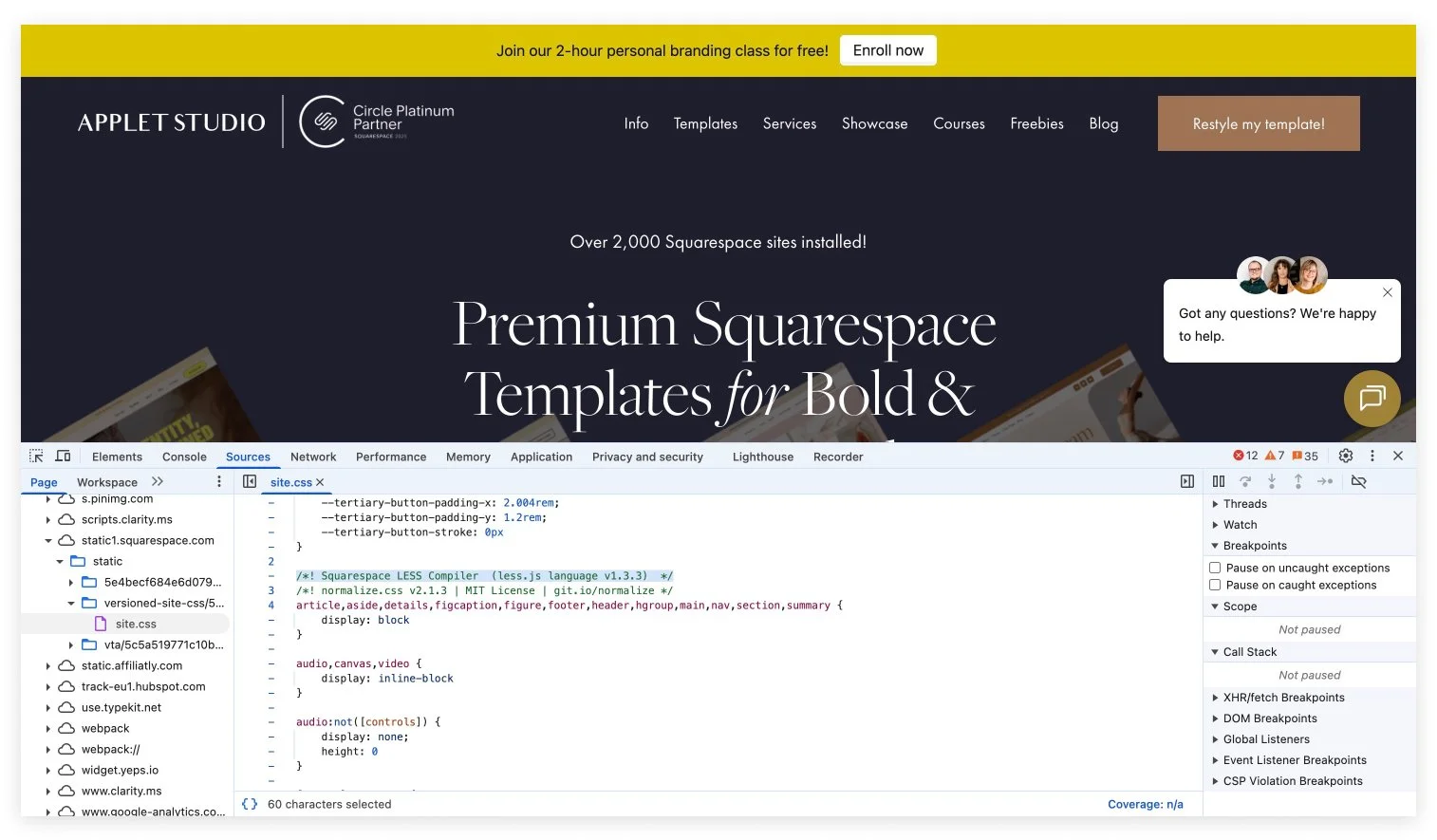
Inside the Sources panel, you’ll see folders that contain the resources loaded by the website.
Squarespace websites typically store their styles in a path similar to this:
static1.squarespace.com → static → versioned-website-css
Inside this folder, you’ll find the site.css file
When you open it, the code may appear as one very long line. This happens because the file is minified, meaning the formatting has been removed to improve site performance.
Fortunately, Chrome and other modern browsers can automatically pretty-print or format the code to make it readable.
Step 3: Scroll to the Custom CSS Section
Scroll toward the bottom of the file. Squarespace system styles appear earlier in the stylesheet, while custom CSS added by the site owner is often located near the end of the file.
Look for a comment referencing the Squarespace LESS compiler. Something like:
x/*! Squarespace LESS Compiler (less.js language v1.3.3) */
Everything below this comment is usually custom CSS that was added through the Squarespace Custom CSS panel.
This section can contain styling for things like:
custom gallery layouts
image hover effects
button styles
typography tweaks
section spacing adjustments
If you’re trying to understand how a site was customized, this is often the most interesting part of the file.
Step 4: Copy the CSS Into a Code Editor
Reading large blocks of CSS directly inside the browser can be difficult.
To make the code easier to analyze, copy the relevant section into a code editor. I personally use Sublime Text, but any editor will work.
If possible, switch the syntax highlighting to LESS, since Squarespace uses the LESS preprocessor behind the scenes.
This makes the code much easier to navigate and helps visually separate different sections of styling.
Step 5: Use AI to Annotate the Code
If you’re not sure what the CSS does, you can paste it into an AI assistant and ask it to explain the code.
For example, you might use a prompt like:
Add comments to this Squarespace CSS and explain what each section does.
The AI can automatically annotate the code, turning something that looks confusing into a readable explanation.
This is particularly helpful when you're learning CSS or exploring someone else's design techniques.
Step 6: Identify Styles for Specific Elements
If you want to understand how a particular design element was created, combine this process with the Inspector tool.
Here’s how:
Right-click the element you’re interested in
Click Inspect
Look at the class names attached to that element
Search those class names in the custom CSS you copied earlier
If the element was styled using custom CSS, you’ll be able to see the exact rules that were applied.
For example, you might discover custom styling for:
image cards
galleries
blog layouts
navigation menus
buttons
This can be incredibly helpful when you're trying to recreate a similar effect.
What You Can (and Can’t) See in Squarespace CSS
While this method reveals a lot of useful information, there are a few limitations.
You can see:
custom CSS added in the Squarespace Custom CSS panel
styling applied to page elements
class names used by blocks and sections
However, you cannot see:
code from private plugins or scripts
server-side functionality
CSS generated dynamically through JavaScript
Still, for most visual customizations, inspecting the CSS is more than enough to understand how a design was implemented.
Using This Method for Learning and Inspiration
Inspecting other websites’ CSS can be an incredibly useful learning tool for designers.
I often use this technique when:
I’m curious how a particular layout was built
I want to understand how someone styled a Squarespace block.
I’m looking for inspiration for a new customization
Of course, it’s important not to copy someone’s work directly. But studying real implementations can help you learn new CSS techniques and improve your own design skills.
Over time, you’ll start to recognize common Squarespace class patterns and understand how different blocks are structured. Once you start using the Inspector regularly, it quickly becomes one of the most valuable tools in a Squarespace designer’s workflow.