Vibe Coding Squarespace Features: How I Do It
How I Create Custom Plugins in Squarespace Using AI
If you've ever wanted to add a custom interactive element to a Squarespace site — a slider, a filter, a tag system — without paying for third-party plugins or hiring a developer, this is the workflow I use. All you need is Figma, an AI tool like Claude or ChatGPT, and a basic understanding of where Squarespace lets you inject code.
I’ve been vibe coding small interactive elements like sliders that are not available in Squarespace out of the box since 2025. Vibe coding is a relatively new term, popularized by tools like Base44 and Lovable, and it means using AI to do the heavy lifting of the mechanical task of writing the code, while you give it precise instructions and direct it.
My method is giving the AI a design that I want to recreate pixel-perfect. I don’t have it designed the elements (to my taste, they look too AI-y this way). I could have never been happier! I am not a programmer, and these new AI tools give someone like me unprecedented power.
In this tutorial, I show you an example of an interactive slider that I created using Figma and Claude. By the way, these plugins are usable within any app that allows code injection, not just Squarespace.
Try Squarespace for free – and save 10% when you purchase a subscription with code APPLET10
The Idea
For this example, I wanted to build a slider with three options, where left and right buttons switch between slides and images.
Squarespace lets you add a custom code block to any section, and that block can contain complete HTML, CSS, and JavaScript — essentially anything you want. For images, you upload them directly to Squarespace and copy their URLs to reference in your code. The whole thing runs natively inside your site.
One more thing worth knowing before we get into the steps: you don't have to put all your code inside the block itself. You can host JavaScript separately under Settings → Pages → Custom Code (the Code Injection section), or under the Advanced tab in each page's settings. This keeps things cleaner and lets you reuse scripts across pages.
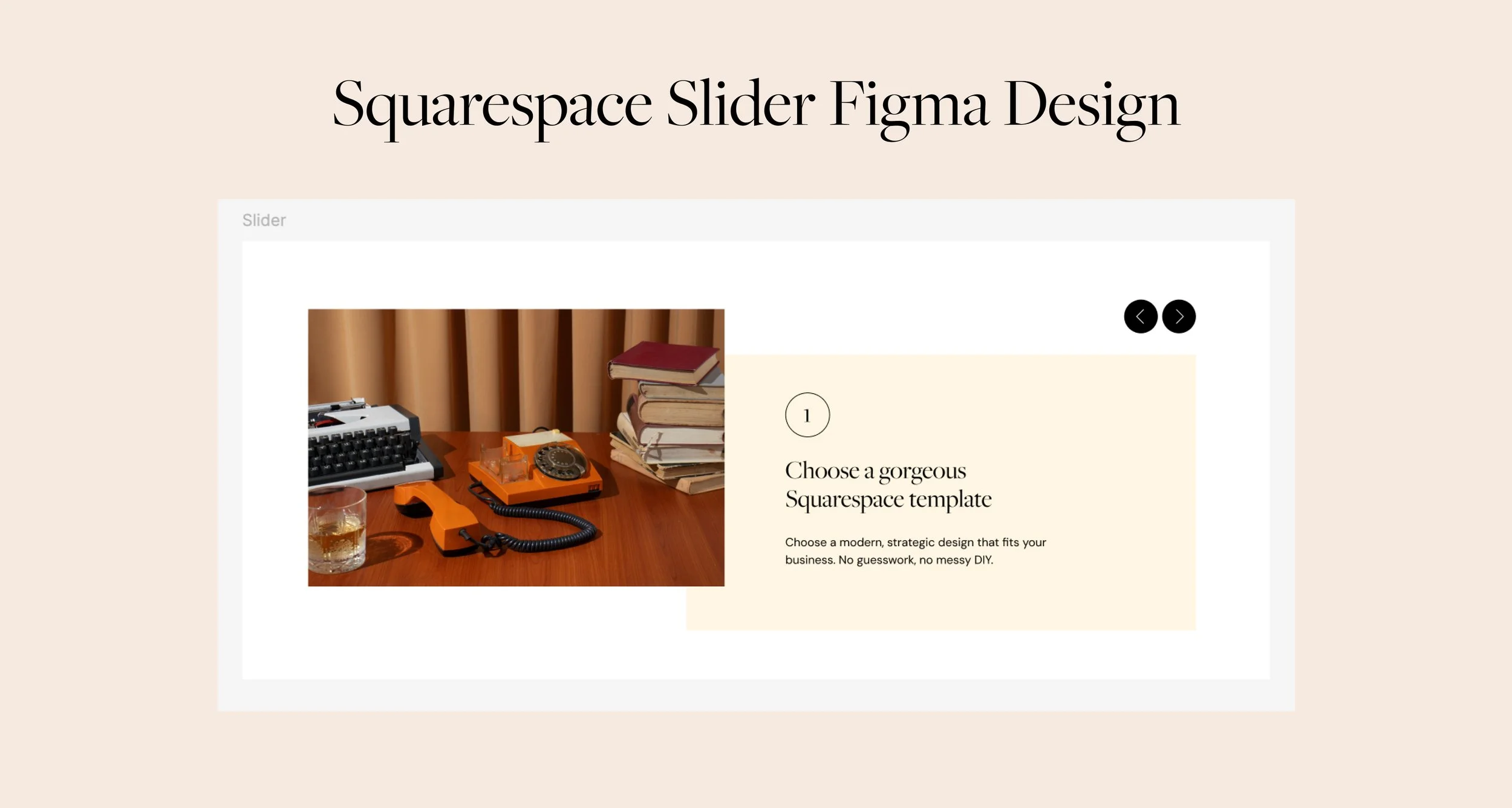
Step 1: Upload Your Images and Grab Their URLs
First, I created a temporary section in Squarespace, added three image blocks, and uploaded my images. For a real project I'd rename the files before uploading — it matters for SEO — but for prototyping purposes it's fine to skip that. Once uploaded, right-click each image, copy the image address, and save those URLs somewhere handy. You'll be passing them to the AI in the next step.
Step 2: Prompt Your AI
Here's roughly what I sent to Claude:
"Can you create an interactive slider for Squarespace? It will live inside a code block, so I don't need a full HTML page — just the slider HTML, with CSS and JavaScript kept separate. The slider uses left and right buttons to switch between slides. I'm attaching links to the images. The fonts are Freight and Futura, the background is slightly beige, and there should be a subtle animation when switching between slides."
The key details to include in your prompt are: the context (a Squarespace code block, not a standalone page), the structure you want, any font or color information, and the image URLs.
Step 3: Iterate
The first attempt rarely comes out perfect, and that's expected. When I pasted my Figma screenshot directly into Claude, it misread the layout — elements were shifted, and things fell outside their containers. Complex designs don't always translate cleanly from a screenshot alone.
My fix was to move the design into Figma Make, a vibe-coding environment built right inside Figma. You can create a Figma Make file, paste any frame directly into it, and ask it to recreate your design using auto layout. The structured output is much easier for AI to interpret than a flat screenshot.
After some back and forth — getting the image offset right, refining the buttons, adjusting the animation — I asked Figma Make to export a plain HTML and CSS file. I fed that into Claude, and from there it had a clear enough picture of what I wanted. A few more iterations and the slider was done.
The whole process took about 40 minutes. I've used the same approach to build custom tags, portfolio filters, and interactive sliders for clients — all without a single third-party plugin.
The Result
The finished slider matched my original Figma design closely — same layout, same feel. It lives entirely inside one Squarespace code block: HTML, styles, and JavaScript together. I'd still tweak the padding before shipping it to a client, but structurally it was exactly what I had in mind. You can grab the full code here.
Bonus: A Workaround for the Personal Plan
If you're on Squarespace's Personal plan, code blocks aren't available — but embed blocks are. Search for "embed" in the block menu, and you can paste a code snippet there.
For one client on a Personal plan with a simple one-page site, upgrading to Core just didn't make sense. Instead, I used Base44 — a web-based coding platform with a free tier — to host the code and generate an embeddable snippet. I pasted that into the embed block, and it worked perfectly. It's a simple workaround that gets you custom interactive elements without needing to upgrade your plan.
If you have questions or want to share what you build, drop them in the comments.












View Demo
Robins is a premium Squarespace template for startups, consultancies, and lawyers. Featuring modern, customizable layouts, built-in services and portfolio pages, and an editorial design that highlights your expertise.