How To Copy Layouts and Pages Between Squarespace Sites
In this tutorial, I want to show you how you can copy layouts from one Squarespace website to another – including sections, layouts, and even full pages. This allows you to take advantage of all the free and custom Squarespace templates and makes it much easier to migrate content between sites.
We use these tools all the time for client projects and internal work at Applet Studio.
Why You’d Want to Copy Layouts Between Sites
A common use case is creating a master template.
For example:
You build great layouts for different clients over time
Instead of rebuilding them from scratch, you collect them all in one Squarespace site
That site becomes your starter template for future projects
You can also do this for personal projects – keeping a master page with all your favorite layouts that you can reuse across multiple websites.
This approach saves time and helps simplify your design process.
The Setup: Two Squarespace Trial Sites
In this example, I’m working inside two Squarespace trial sites. These trials are perfect because you can explore the full Squarespace template library and copy the best sections into one main site.
You can move layouts:
Between trial sites
From free templates into one custom template
From older projects into new ones
Now let’s look at the actual methods.
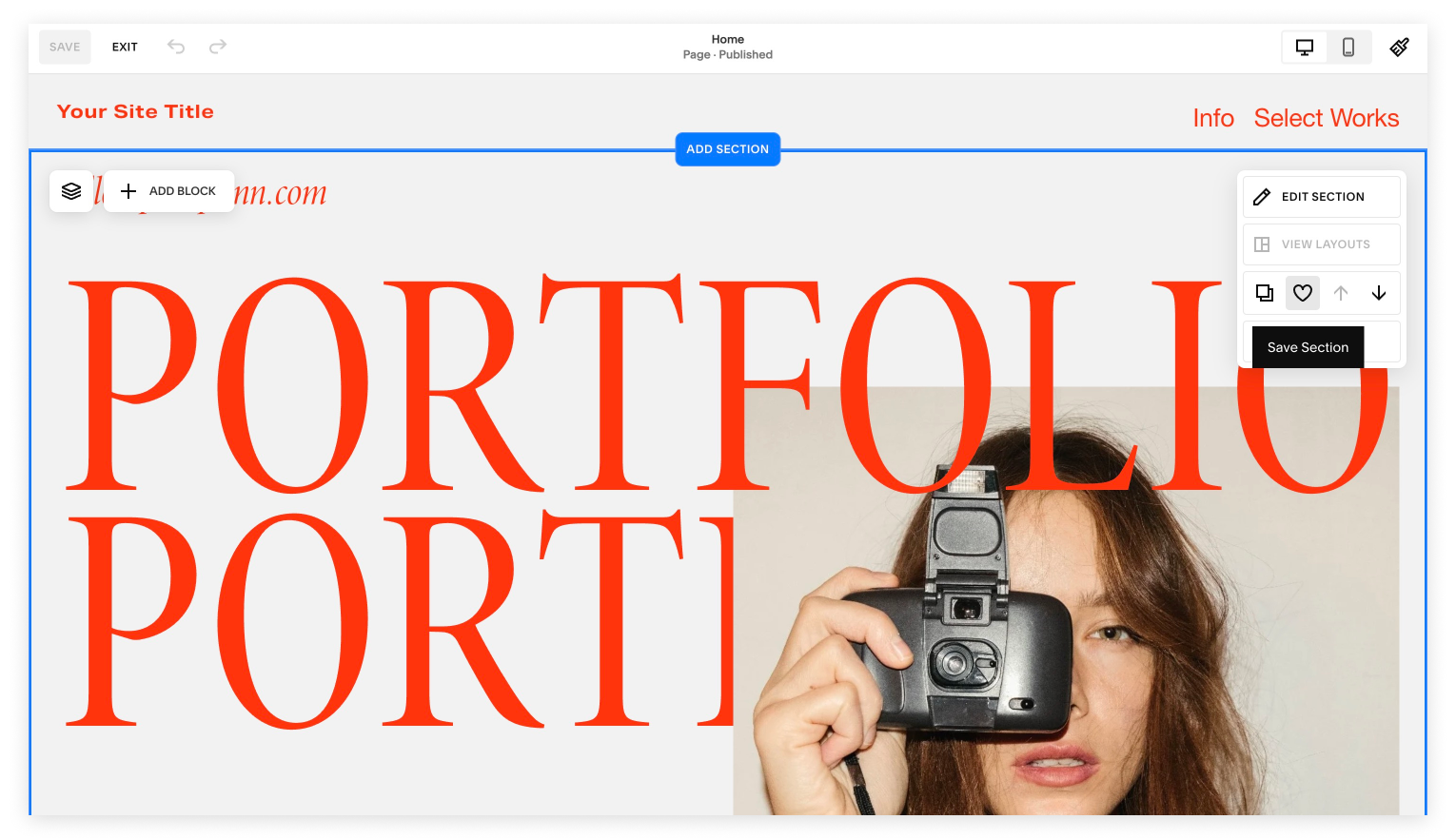
Option 1: Using Squarespace’s Built-In Tools (Circle Members Only)
Squarespace does offer a native way to save sections — but there’s an important limitation.
How It Works
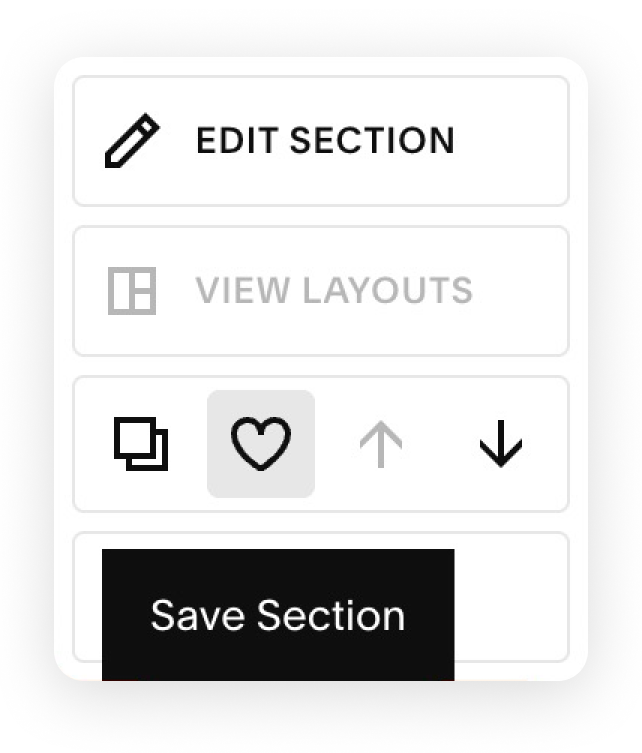
Inside the Edit Section settings, you’ll see a Save Section option – a heart icon.
When you click it, you can:
Save the section to the current site
Or save it to your account
Once saved, you can reload that section later on another site.
The Catch
Saving to the account is only available if you’re a Squarespace Circle member.
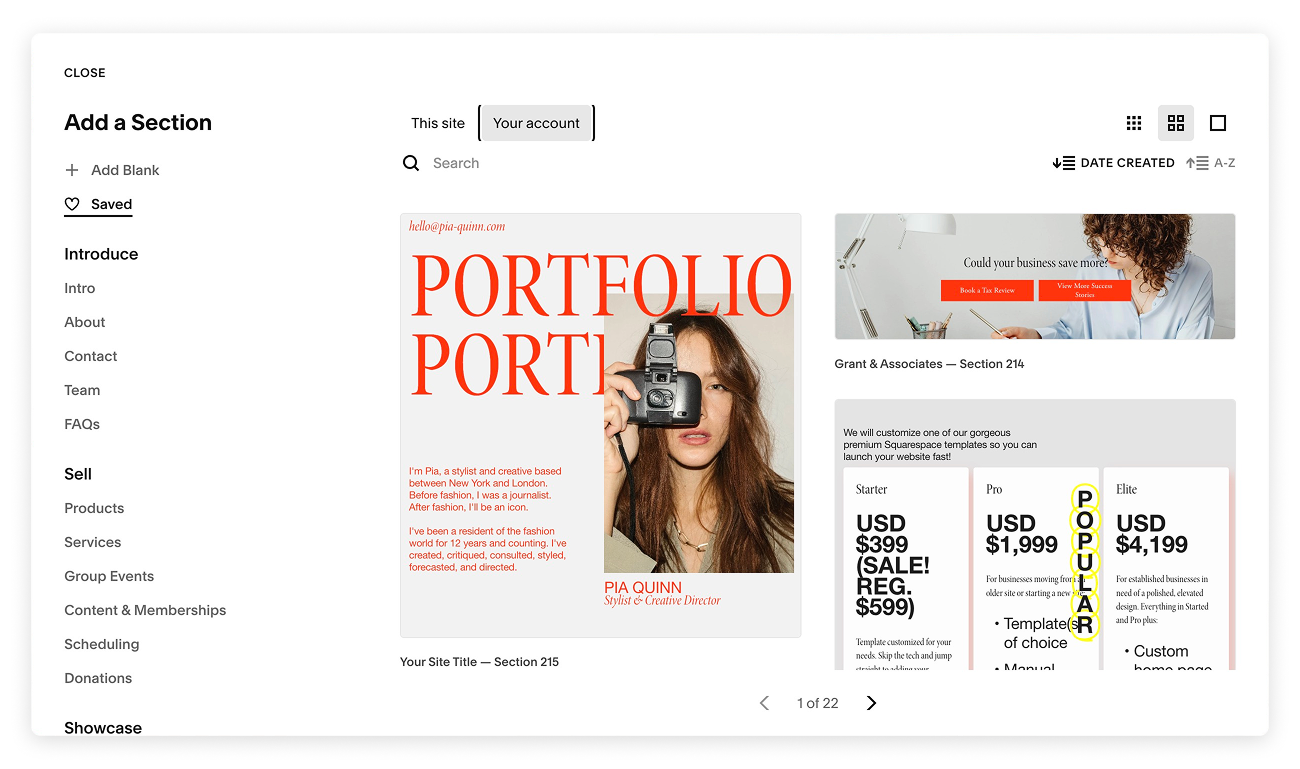
Also, when you load the saved section into another site, it will inherit the settings and styles of the new site, not the original one.
Still, it’s a solid option if you’re already a Circle member and you want a native, no-plugin solution
Option 2: Using the Squarespace Website Tools Pro Extension
This is the option we use most often. And up until recently, it was the only option available. Squarespace introduced the saving sections feature in 2025.
We’ve been using Squarespace Tools Extension Pro for about five years, and it’s a huge time-saver. This extension allows you to move:
Entire pages
Individual sections
Blog posts
Product pages
Copying a Full Page Between Sites
Here’s the basic workflow:
Open the extension
Go to Pages
Click Get Collection Data
Confirm the action
Switch to the destination site
Click Create From Data
If you hold Shift, the page will be created inside the Not Linked section of your Pages panel.
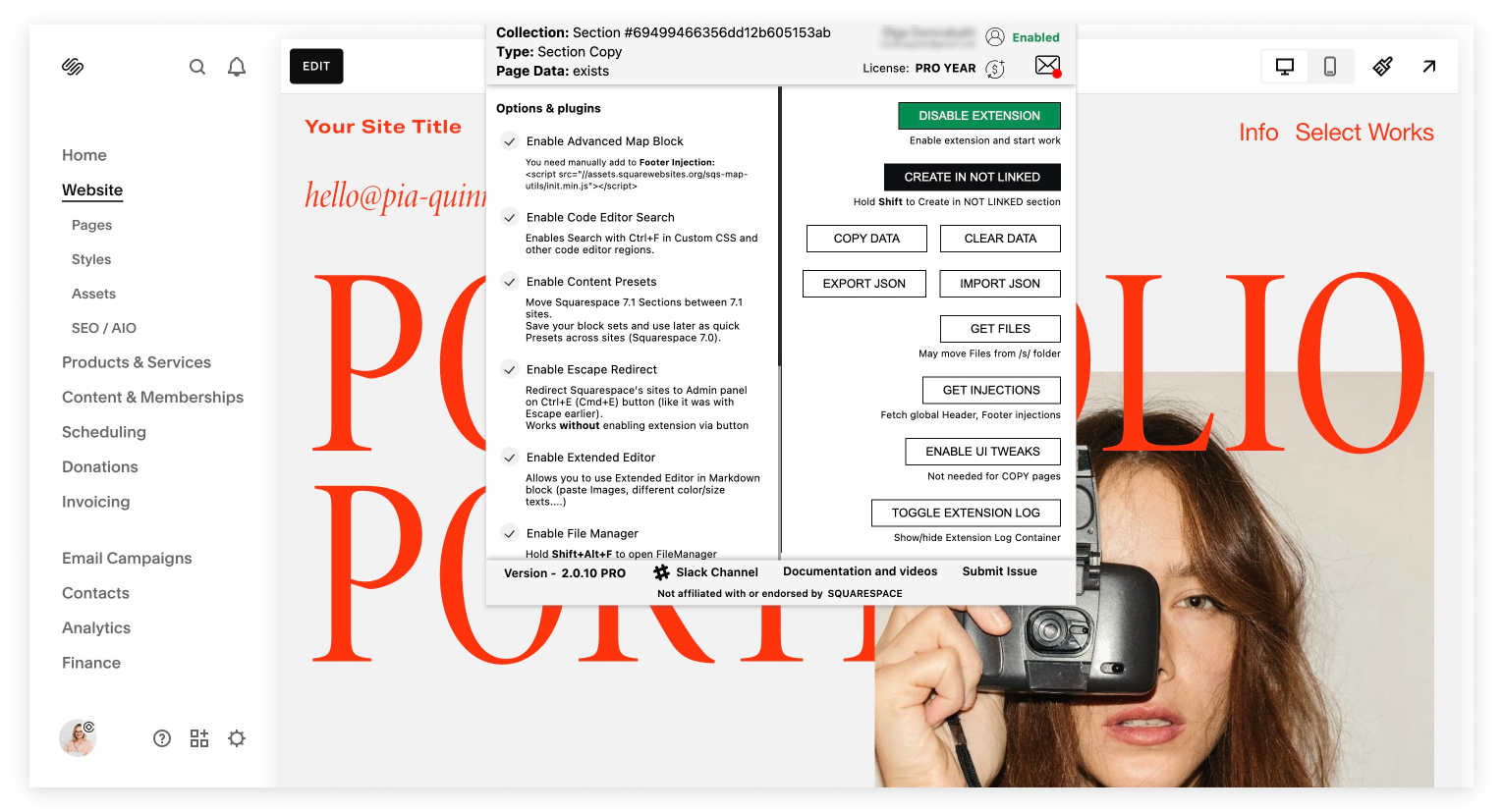
It may take a minute or two to process, so don’t worry if it’s not instant. It may take a long time if you are moving a blog with numerous blog posts.
Once it’s done, you’ll see the full page (both layout and content) included inside your new site. As always, the page will inherit the colors and fonts of the website it’s been transferred to.
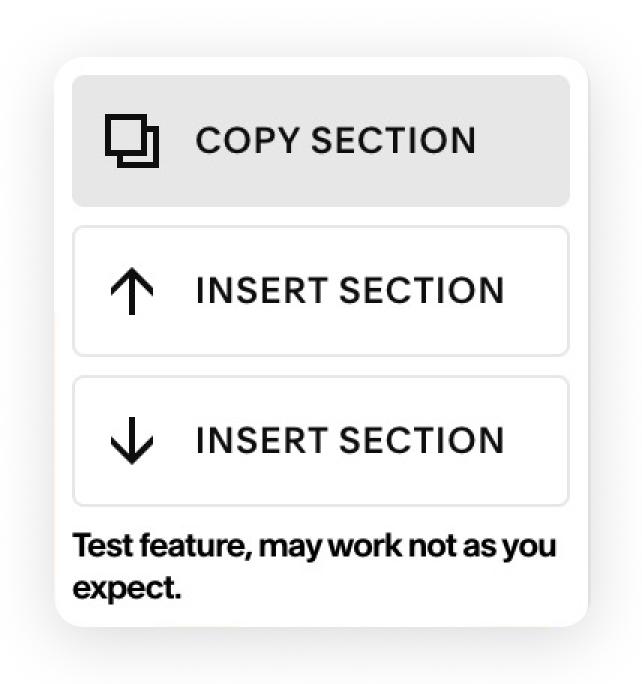
Copying Individual Sections (Plugin Feature)
After enabling the necessary options (like File Manager, Date, and UI Tweaks), you can:
Copy a single section
Switch to another site
Paste that section anywhere you want
This makes it incredibly easy to build custom pages by mixing and matching layouts from different templates and trial sites.
That’s how you can move sections, layouts, and full pages from one Squarespace site to another – either using Squarespace’s default tools or a powerful browser extension.


View Demo
Robins is a premium Squarespace template for startups, consultancies, and lawyers. Featuring modern, customizable layouts, built-in services and portfolio pages, and an editorial design that highlights your expertise.