How to Populate Your Squarespace Website with Testimonials
Add selling reviews to your Squarespace website from Etsy, Google, and Facebook
Regardless of the product or service they sell, all entrepreneurs know that reviews and testimonials play a central role in their business success. Reviews are helpful to understand the pitfalls of our offerings and make any necessary adjustments or improvements, but they are also a powerful tool to build trust among your potential customers.
Displaying reviews on your website can help you bond with your potential customers, allowing you to make a strong case for your products and services by showing that others have tried and enjoyed them. Testimonials can play a role of a final nudge your prospects need to receive to convert or the reason why they start looking into your business in the first place.
In this article, we’ll go over some of the ways in which you can add reviews to your Squarespace website, either through its built-in feature or through third-party tools. Let’s begin!
Squarespace’s built-in product reviews
Not long ago, Squarespace launched its own built-in product reviews feature, which makes it incredibly easy for entrepreneurs to add testimonials to their websites.
If you enable product reviews on your Squarespace website, your customers will receive an email automatically 14 days after you fulfill their order — regardless of whether they bought a physical, digital product or service. By clicking the link in that email, they’ll be able to leave a written review of up to 1500 characters for each item in the order, as well as a rating between one and five stars.
Now, let’s go over some special cases. Sometimes customers order multiple products at once (we love those orders, don’t we?) When that happens, they'll only receive one email, but they can review each product separately. For subscription products, customers will only receive one email requesting a review and they’ll have up to 120 days to say some nice things.
Again, this process is automatic and there’s really no intervention on your side other than setting it up. It’s a great tool to streamline your process for gathering reviews, or even begin doing so in the first place! And it’s all built into the platform, which makes the whole thing a lot easier.
Here are some important things to keep in mind, though:
You can only use this feature if you are on a Basic, Core, Plus, Advanced, Commerce Basic, or Commerce Advanced plan.
You can’t delete a review, but you can keep it from displaying on your product pages on the Product Reviews panel;
There’s a time limit for leaving reviews: Within 120 days of the customer’s order;
You can’t move product reviews over to a new website;
Customers cannot delete or edit their product reviews.
Try Squarespace for free – and save 10% when you purchase a subscription with code APPLET10
How to enable Squarespace product reviews
Now, to the most important part: how exactly do you enable product reviews on your Squarespace website? Here’s a quick breakdown:
Customize a review request email in the automation dashboard;
Activate the request customer review automation;
If you want to receive an email whenever a customer leaves a review, switch the Email notifications toggle on in the Customer Reviews panel;
To read your reviews and manage their visibility, open the Product Reviews panel, which shows all your reviews, including the date, rating, content, customer, and product. In the Visibility drop-down menu, you can switch a review from public to private and vice-versa.
How do Squarespace product reviews display on my website?
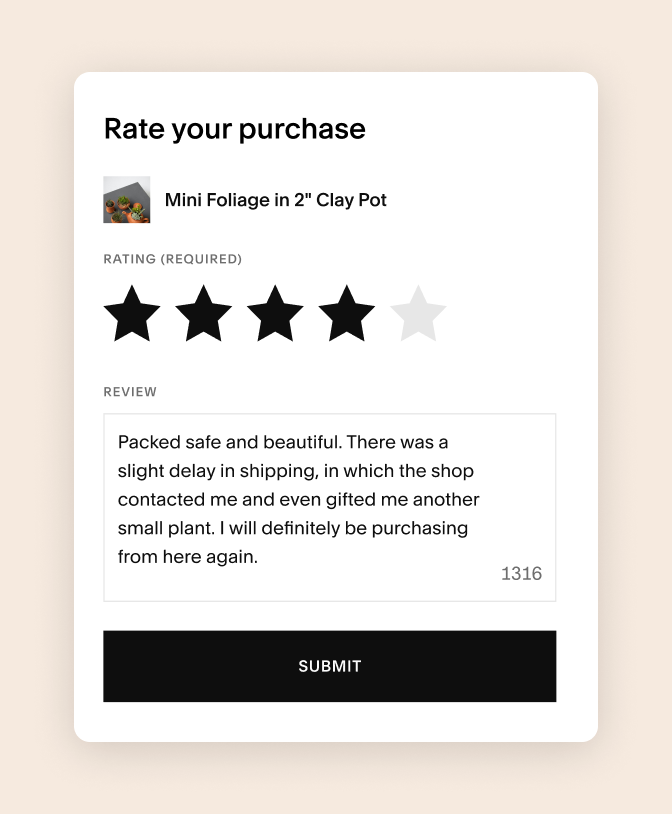
All the lovely things your customers say about your products and services will display at the bottom of your product pages, but their look will depend on your product reviews settings (except for the stars, which are always black).
You can choose to show product reviews only, in which case the website will display all reviews and the average rating for the product the customer is viewing. You can also choose to display store reviews only, which means that customers will be able to see all reviews and the average rating for all products in your store. Or you can choose to show both, which means that product and store reviews will be divided into tabs on the product page.
Importing Etsy reviews into your Squarespace
Here’s another cool built-in feature: If you have an Etsy store, you can import your reviews and show them on your Squarespace website. Etsy-imported reviews include relevant information such as the customer’s name, the date of the review, product images and titles, the content of the review, and the rating. It’s a great way to leverage your reviews from another point of sale!
To import your Etsy reviews, follow these steps:
Head to the Customer Reviews panel and click the gear icon.
Click Import next to Etsy Reviews and then Login and Import.
Once you log into your Etsy account, click Grant Access. The process might take up to 20 minutes.
After your reviews are imported successfully, you can see them by clicking See Reviews.
One thing to keep in mind: Importing reviews is a one-time process. That means that Squarespace doesn’t automatically sync your reviews to display new ones. To ensure the most recent reviews appear on your website, you’ll need to reimport them manually (aka, repeat this process).
Third-party tools to add reviews to your Squarespace website
Now, what if you have many lovely customer reviews on other platforms, like Google or Facebook? How can you display those on your Squarespace website without resorting to a screenshot or a plain copy-paste?
There are several third-party tools that allow you to add reviews to your Squarespace website from other platforms. Here are some of them:
How to add Etsy reviews to your Squarespace website
You may be wondering why we’re covering Etsy reviews again if we’ve just told you that Squarespace has a built-in feature to import them. Well, as we said, there’s a catch: Squarespace’s feature doesn’t update automatically, meaning that your most recent reviews won’t show up unless you re-import them.
With the appropriate widget, however, you can display fresh reviews on your website automatically. SociableKIT’s Etsy reviews widget is free and you can set it up in 2 minutes, tops. Here’s how:
Sign up for free or log in to SociableKIT.
Create and customize your Etsy reviews widget.
Copy the embed code.
Log in to your Squarespace website and create a page for your Etsy reviews or edit the page where you want to add them.
Paste the embed code in a Code block on the page.
Save and view your page. Your Etsy reviews should be displayed there for all to see!

How to add Google reviews to your Squarespace website
If you have a Google Business Profile packed with reviews from customers, you can use Elfsight’s plugin to show them off on your Squarespace website. This free plugin allows you to add client reviews from Google to your website with details about the customers. You can also choose from a variety of lovely templates, filter the reviews to show only good ones, and add a redirect button to lead users to your Google page.
Setting up this widget is quite easy. You simply need to follow these steps:
Customize your widget on Elfsight’s page (you can use their free demo).
Copy the code for your specific customization.
Head over to Squarespace and log in.
Find the page where you want to add the reviews.
Click the Add Block icon and pick the Code block under the More section.
Paste the code from the Elfsight Apps and adjust the widget as necessary.

How to add Facebook reviews to your Squarespace website
Do you have Facebook reviews that you want to show off? You can use EmbedSocial’s Facebook reviews widget exactly for this. It features advanced options to filter and prioritize reviews, as well as 20 pre-defined layouts that are fully customizable to suit your brand. Another major benefit is that this widget automatically displays the latest reviews on your Squarespace website, so you don’t need to waste time updating it regularly.
To embed Facebook reviews on your Squarespace website, follow these steps:
Sign up for a free trial on EmbedSocial and connect your Facebook page.
Choose the Facebook page from where you want to pull the reviews.
Customize the layout.
Copy the HTML code.
Log in to your Squarespace account and open the page where you want to display the reviews or create a new one.
Add a new block and select Embed.
Paste the widget’s code and Save.

How to add reviews from multiple platforms at once
If you want to display reviews from several platforms in one place, Elfsight’s All-in-One Reviews widget is a simple option. It lets you pull in reviews from Google, Facebook, Yelp, Amazon, Booking.com, Airbnb, Tripadvisor, AliExpress, and other sources and show them in a single, styled block that matches your site.
You can customize the layout, choose which platforms to connect, and filter out specific reviews if needed. Once your widget is ready, Elfsight generates a small embed code.
To add it to your Squarespace website:
Create your widget in the Elfsight dashboard and copy the generated code.
In Squarespace, open the page where you’d like the reviews to appear.
Add a Code block and paste the code inside.
Save the page — the reviews will load instantly.
This tool is especially useful if your reviews live on multiple platforms and you want a single place to showcase them without manually updating anything.

You've earned those reviews. Now, show them off! Whether you use Squarespace’s built-in features or a third-party widget, make good use of the power of reviews to see your conversions grow and make your sales reach new highs.
FAQ: Adding Reviews to Squarespace
Q: Why should I add reviews to my Squarespace website?
A: Reviews build trust with potential customers, showcase social proof, and can even improve SEO by adding fresh, user-generated content to your site.
Q: Can I add reviews directly in Squarespace without third-party tools?
A: You can turn on Squarespace’s product review feature to get the reviews from clients through Squarespace. Also, you can add Etsy reviews directly, but for other platforms like Google or Facebook, you’ll need a third-party widget.
Q: Do I need coding skills to add reviews?
A: No – Squarespace’s built-in blocks and most third-party widgets only require drag-and-drop or pasting an embed code.
Q: Can I display reviews from different platforms together?
A: Yes — using a tool like Elfsight All-in-One Reviews, you can show reviews from Google, Facebook, Yelp, and more in a single, styled widget.
Q: Can I customize how reviews look?
A: Yes – native Squarespace blocks allow basic styling. Third-party widgets offer more advanced customization for layout, colors, fonts, and filters.
Q: Will reviews update automatically?
A: Native Squarespace reviews update as users submit them, but you will need to manually update Etsy reviews if you connected it to Squarespace. Widgets like Elfsight also pull new reviews from connected platforms automatically.














VIEW DEMO
Robins is a premium Squarespace template for startups, consultancies, and lawyers. Featuring modern, customizable layouts, built-in services and portfolio pages, and an editorial design that highlights your expertise.